
Your music, your way.
There's no single way to get your music into BeatPlay. Pick what works best for you: copy songs directly from your iPhone, sync from your Mac with Finder or iTunes, or use Bridge for automatic artwork, playlists and compression.
From your iPhone (Files)
You can import songs directly from your iPhone, no computer required.
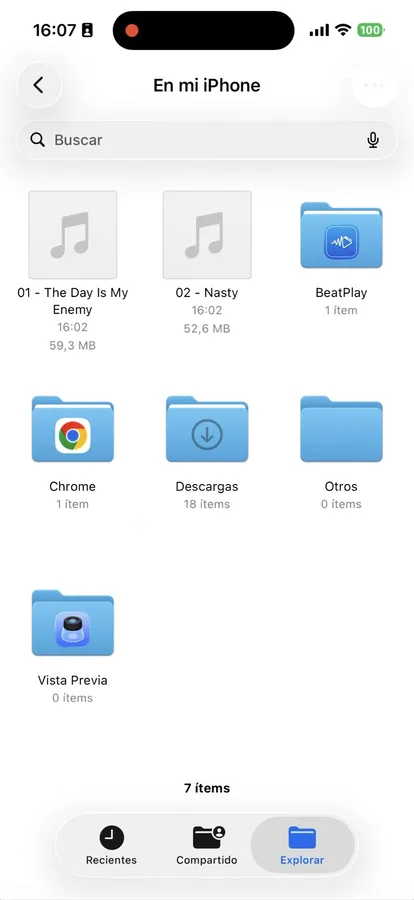 1
1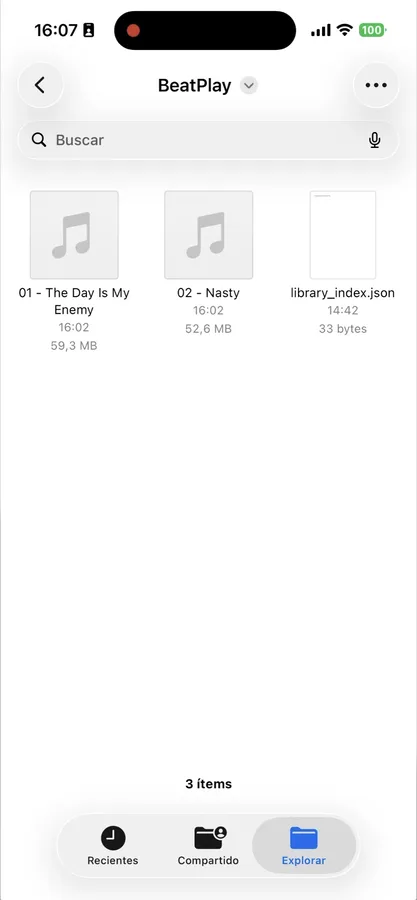 2
2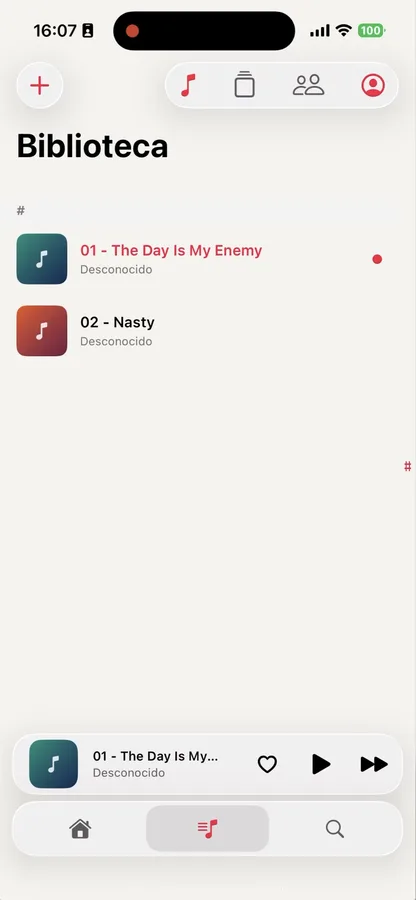 3
3Supported formats
M4A · AAC · MP3 · WAV · AIFF · CAF · FLAC · OPUS
The song name or artwork may not be detected correctly. Bridge, the BeatPlay Mac app, can fix this.
With iTunes or Finder (Mac)
On your Mac, open any Finder window. When you connect your iPhone, it will appear in the sidebar.
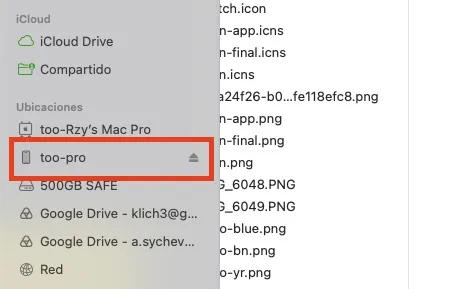 1
1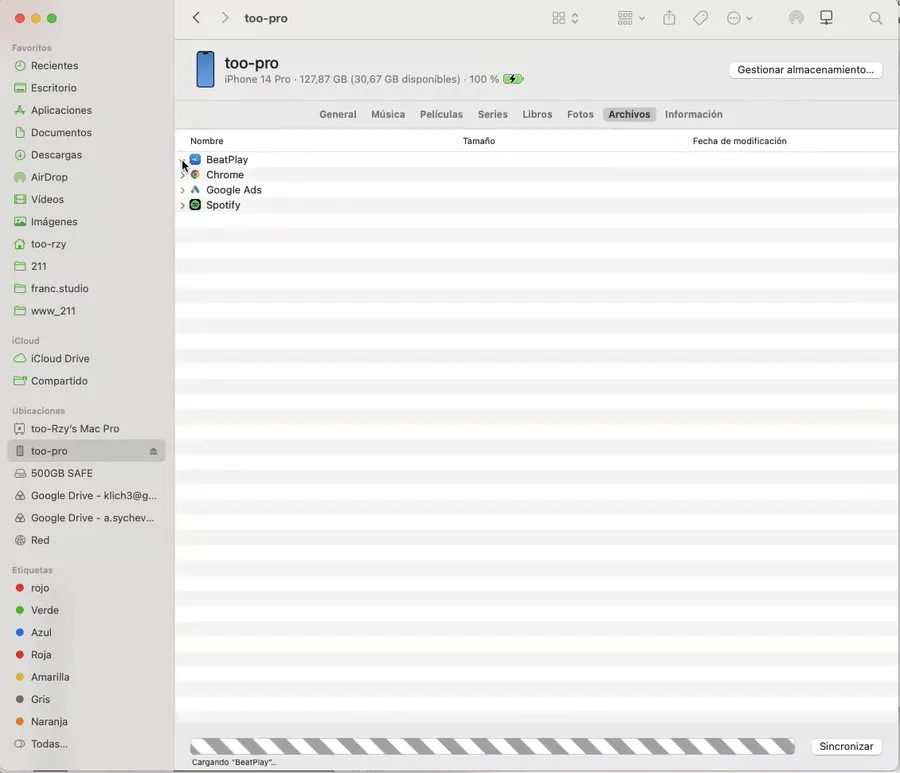 2
2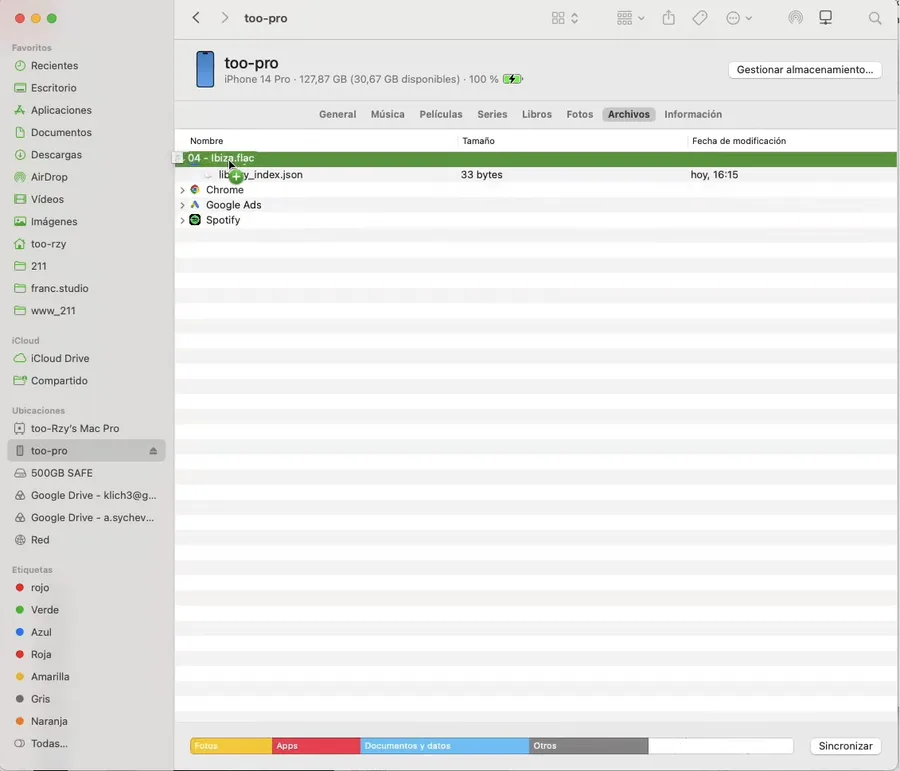 3
3The song name and artwork may not appear correctly when using this method.
With Bridge (Mac)
Bridge is BeatPlay's free desktop app for Mac. Connect your iPhone and Mac to the same WiFi network to sync wirelessly.
Playlists
Create and organize playlists from your Mac.
Identify songs
Automatically detects the name and artwork of your songs.
Copy and delete
Manage your iPhone library directly from your Mac.
Compress
Reduce file size without losing your library: more songs in less space.
You'll find your iPhone's WiFi address to enter in Bridge in your BeatPlay profile.
Send music to Apple Watch
To transfer songs to your Apple Watch you need BeatPlay Pro.
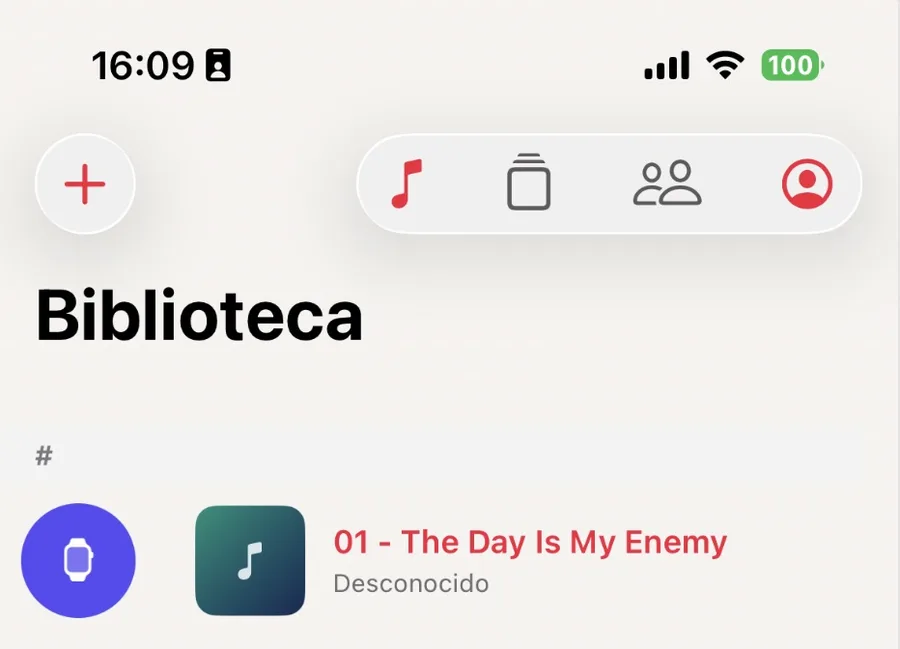 1
1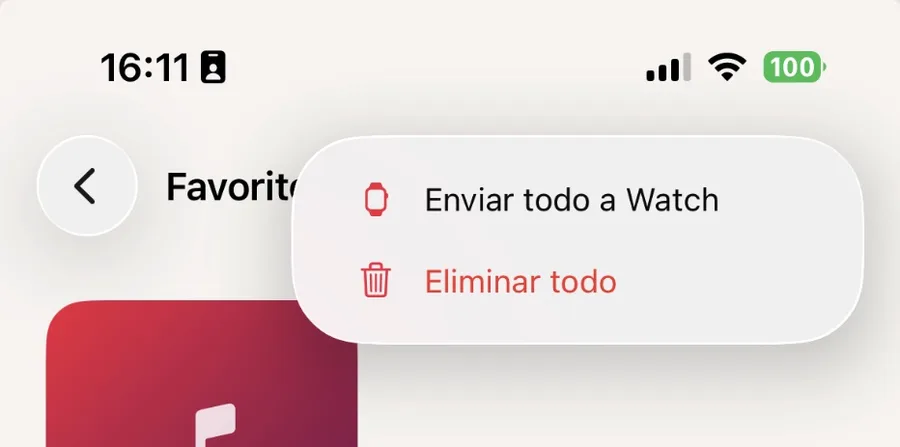 2
2 3
3Songs are saved on the Apple Watch itself, using available watch storage, and don't need an internet or iPhone connection to play. You can listen with your AirPods or other Bluetooth headphones.
Available with BeatPlay Pro.